

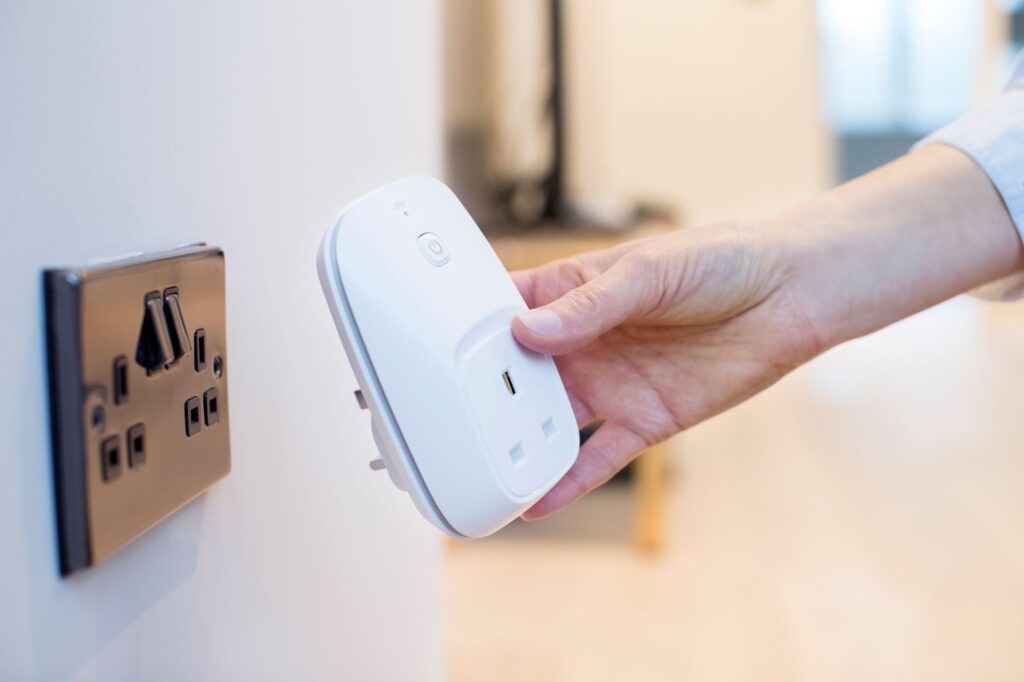
Smart plugs have become an essential piece of technology for modern homes. These handy devices allow you to control electronics and appliances remotely via smartphone apps or voice assistants. However, like any tech gadget, smart plugs can sometimes malfunction and become unresponsive.
When your smart plug stops working properly, it can be immensely frustrating. But there’s no need to panic or call an electrician. In most cases, you can get your smart plug functioning again with some basic troubleshooting techniques. This comprehensive guide will walk you through the most common issues that cause smart plugs to become unresponsive and provide step-by-step solutions to get them back online.
What Are Smart Plugs and Why Are They Useful?
Before we dive into troubleshooting, let’s quickly cover the basics of what smart plugs are and why they’re so popular.
Smart plugs are compact devices that you plug into ordinary electrical outlets. They act as an intermediary between the outlet and whatever appliance, light, or device you connect to them.
The key feature that makes smart plugs “smart” is the ability to connect to your home Wi-Fi network and be controlled remotely through a mobile app or voice assistant commands. So you can turn electronics on and off or set schedules and timers without getting up from the couch.
Here are some of the main reasons smart plugs have become must-have devices for many households:
- Convenience – Turn devices on/off from anywhere via smartphone
- Energy savings – Set schedules to reduce unnecessary energy use
- Safety – Operate appliances like heaters and irons remotely to prevent accidents
- Automatic operation – Integrate with devices like sensors to trigger automatic actions
Now that you know what sets smart plugs apart, let’s look at why they sometimes fail by becoming unresponsive.
Common Causes of Unresponsive Smart Plugs
When your smart plug is powered on but not responding to the app or voice commands, there are a handful of likely culprits to blame. Here are the most common reasons smart plugs become unresponsive:
Power and connectivity issues
- Power outages
- Faulty wall outlet
- Disconnected USB power cable
- Wi-Fi network problems
- Router malfunctions
Firmware and hardware problems
- Outdated or buggy firmware
- Hardware defects or damage
- Overheated electrical components
Integration failures
- App connectivity problems
- Voice assistant misconfigurations
- Third-party service failures
User errors
- Incorrect app settings
- Mistakes during setup
- Overloaded circuits
The problem could also be a combination of multiple factors. Now let’s go through the troubleshooting process systematically to pinpoint what’s wrong with your smart plug.
Step-by-Step Troubleshooting Guide
Follow these steps in order to efficiently diagnose what’s causing your smart plug to misbehave:
1. Check Physical Connections and Power
The first set of things to check are the basic physical connections:
- Verify the smart plug is securely inserted into the wall outlet
- Check that appliances are properly connected to the smart plug
- Ensure any USB power cables are firmly attached
- Confirm all cords and wires are not loose or damaged
While inspecting connections, also check the status lights on both the plug and connected appliances. This gives clues about whether they’re receiving power properly.
Additionally, try plugging the smart plug into another outlet to make sure there are no wiring issues with your original one. Loose wall outlets can disrupt connectivity.
2. Reboot the Router and Modem
If the plug’s status lights indicate it’s receiving power, then connectivity problems are the next likely culprit.
Start troubleshooting wireless issues by rebooting your router and modem:
- Unplug both devices from power for 30 seconds
- Plug them back in and allow 2-3 minutes for full restoration
Rebooting refreshes the network connection and DNS cache. This can resolve any network conflicts or glitches that are preventing communication with smart plug apps and services.
3. Reset the Smart Plug
If rebooting networking equipment doesn’t restore connectivity, try resetting the smart plug itself using either the manual reset button or the reset option in the app:
Manual reset
- Locate the tiny recessed button on the side/bottom
- Press and hold for 10+ seconds until the status light blinks
App reset
- Open the smart plug’s app
- Navigate to Device Settings
- Choose “Reset Device” and follow the prompts
Resetting clears any faulty device settings and resets communication protocols. Just be aware you’ll have to reconnect it to Wi-Fi and services after resetting.
4. Check Firmware Version
Outdated or corrupted firmware can also cause smart devices like plugs to go haywire. Firmware is the core software controlling specific hardware functions.
To check your plug’s firmware version:
- Open device settings in the app
- Locate the firmware version number
- Check the manufacturer’s listed latest version
If yours is behind, initiate a firmware update through the app. This will install the latest performance improvements and bug fixes.
Note: Updating firmware will reset custom device settings.
5. Update Mobile App
Alongside outdated device firmware, having an obsolete app version can also disrupt connectivity. If firmware updates don’t help, troubleshoot by:
- Checking your app store for more recent app releases
- Installing any pending updates for your smart plug’s app
- Testing connectivity after updates are complete
Keep in mind you may need to re-pair the plug with the app after major app updates.
6. Disable 5Ghz Wi-Fi Band
Here’s a simple but often effective wireless troubleshooting step if you have a dual-band router broadcasting both 5Ghz and 2.4Ghz networks.
Many smart home devices can only connect to 2.4 GHz Wi-Fi due to hardware limitations. If your router defaults to 5 GHz for new connections, the smart plug may have lost connectivity after initial setup.
Resolve this by:
- Logging into your router admin console
- Locating the dual-band settings
- Disabling the 5GHz band or giving priority to 2.4GHz
After this change, reboot your plug and router to shift back to the 2.4 GHz wireless band.
7. Factory Reset Smart Plug
If you’ve tried all other troubleshooting tips with no success, a factory reset should be your last resort. This will erase all device data and settings and revert it to out-of-the-box condition.
Important: Make sure firmware and app are up-to-date before resetting!
Then perform a factory reset:
- Press and hold the reset button for 15+ seconds
- Keep holding until the status light flashes rapidly
- Release the button when rapid flashing starts
The smart plug will return to first-time setup mode after completing the reset process.
Preventing Future Smart Plug Issues
Resetting your unresponsive smart plug likely got it functioning again, but let’s look at some tips to avoid repeat problems down the road:
- Keep firmware updated in the app
- Install mobile and router firmware updates
- Don’t overload outlets
- Ensure strong Wi-Fi signals in the plug location
- Add plugs to a UPS battery backup
- Enable automatic device restarts in scheduling apps
Following best practices for placement, updating, and managing smart devices will minimize headaches and keep your plugs running reliably for years.
When to Call Technical Support
If you’ve exhausted all standard troubleshooting techniques and your smart plug still refuses to respond, it’s probably time to contact customer support:
- Within warranty – Manufacturers will replace defective units
- User damage – Out-of-warranty options still available
- Professional assistance – Technical staff can diagnose complex issues
Don’t take apart smart plug hardware unless instructed by support staff, as this can void warranties. Most manufacturers have robust customer service teams ready to address functional problems.
Just have your model information and troubleshooting details handy when you call. This will speed up the resolution!
Key Takeaways and Next Steps
Hopefully, this comprehensive smart plug troubleshooting guide got your unresponsive device back in working order!
Here are the key troubleshooting takeaways:
- Methodically step through connectivity checks first
- Keep firmware and apps updated
- Factory reset malfunctioning hardware as a last resort
Optimizing maintenance and software for your smart home gadgets will minimize future issues. But should your smart plug act up again, return to these troubleshooting procedures to quickly restore functionality.